Create New Designs with AI
Start with a rough idea, make a design in the builder, and check the result before it goes on a gang sheet.

Before you generate
If your account shows Detail and Size
The menu shows the total credits for one design before you make it. A combination over the four-credit limit is unavailable.
Detail
Start with Standard. Move toward High, Extra, or Max when the brief needs finer detail, then judge the actual lettering and edges in the result.
Size
Preview, Standard, and Print size request different pixel sizes. The setting does not choose the physical width of your transfer; inspect the file at the size you intend to print.
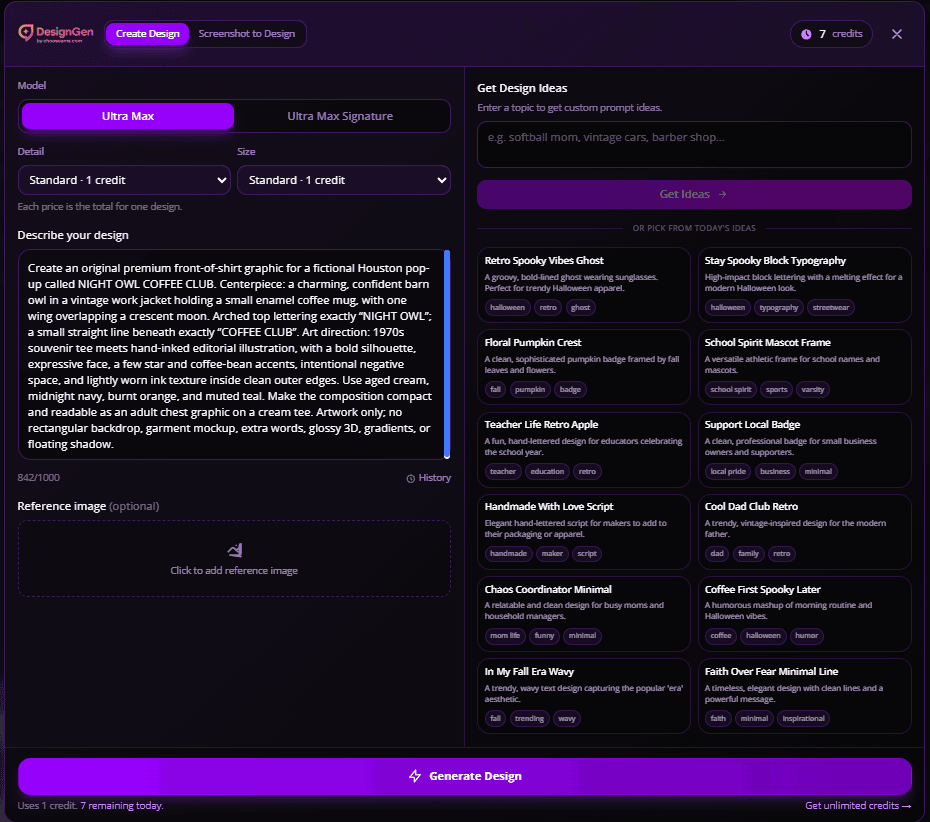
Example from an eligible account. Your available controls and displayed credit total may differ.
Choose your creation mode
Mode A: From Scratch
Prompt → Design
Best when you want brand-new concepts, niche drops, or fast variations.
What to do:
- 1Pick a curated daily prompt (or type your own)
- 2Check the displayed credits and generate
- 3Review text, edges, and background
- 4Check the file at the intended print size
- 5Add the approved result to a gang sheet
Mode B: With Reference Images
Guided Generation
Best when you’re matching:
- a customer’s vibe
- an existing logo style
- a brand look
How to get better results:
- Use 1–2 clean references, not 4 random ones.
- Tell the AI what matters: “keep the mascot pose,” “use this color vibe,” “bold text, no gradients.”
Prompt formula that actually works (steal this)
If your prompts are vague, your results will be vague.
Example 1
“Houston baseball mom, bold vintage mascot illustration, text: ‘H-Town Moms Club’, navy + orange palette, clean outlines, isolated artwork”
Example 2
“Oilfield safety theme, clean badge logo, text: ‘Night Shift Crew’, high contrast, thick lines, no tiny details, transparent background”
Simple Credits
Open the builder to see your balance and the total credits for one design. If Detail and Size appear on your account, changing them can change that total. Check it again before you generate.
Generate from Scratch
Generate a result from a text prompt, then check it before ordering.
Generate with Reference
Guide the AI using an existing image for style.
“Print rules” you should follow
Make sure it presses clean.
- !Avoid hairline details (tiny lines disappear in production).
- !Keep contrast high if it’s going on dark garments.
- !If it must print big: inspect the result at that physical width and review any resolution warning.
Next Step
Once you generate, don’t orphan the workflow.
FAQs
Do I own the art I generate?
Check the current AMS and DesignGen terms for your intended use, and use only source images, logos, and words you have rights to use.
Do I need Photoshop?
No. You can create artwork in the AMS builder, then check the words, edges, and intended print size before ordering.
What should I check in a generated design?
Read every word and inspect the background, edges, and intended print size before ordering.
Can I make multiple variations fast?
You can adjust your brief and generate another result. Check the displayed credit total before each generation or edit.